
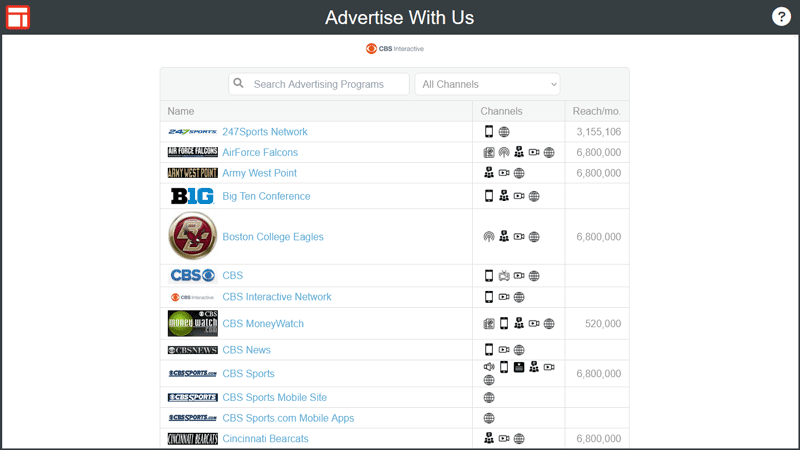
What is Advertise with Us?
Advertise With Us is a free search engine that enables media planners and media buyers to find advertising placements for their media plans, and to connect with ad salespeople.
Features of Advertise With Us
Advertise With Us provides media planners and media buyers with free tools to help them to discover and to understand advertising programs that match their advertising objectives:
- Search Programs – Discover advertising programs for your media plans. Run a Search.
- View Program Details – Understand the advertising options for an advertising program. See Program Example.
- Browse Vendors – Browse the list of participating vendors. See Vendors.
- See Vendor Offerings – See the list of advertising programs offered by a vendor. See vendor example.
- Browse Categories – Browse categories in the catalog. See Categories List.
- See Category – See a list of programs in a category. See Category Example.
- Request Information – Get more information about an advertising program by hitting the red “Get More Information” button.
Advertise With Us is Free!
Advertise With Us (“AWU”) is a free service:
- Ad sales teams list their advertising programs in AWU for free.
- Media Planners and Media Buyers use the AWU website for free.
- Ad sales teams receive inquiries from AWU for free.
What’s the catch? There’s no catch.
We are providing AWU for free to endear ourselves to you and to others in the advertising industry. We hope you like it!
How to Update Your Listings
You can update your AWU listings instantly through Bionic for Ad Sales as follows:
Log In to Bionic
- Go to https://app.bionic-ads.com/
- Log in with your email address as your ID.
- If you don’t have an ID, you can Request an Account (it’s free).
- If have an ID but you’ve forgotten your password, hit “Forgot Password?” link.
Manage Your Programs
- Once you’re in, click the “Programs” tab (see screenshot below).
- Click “Add Program” button to add new advertising programs to your catalog.
- Click the program name to modify any of your programs.
- Click the “Help with Programs” link to access online help documentation.
Your Advertising Programs
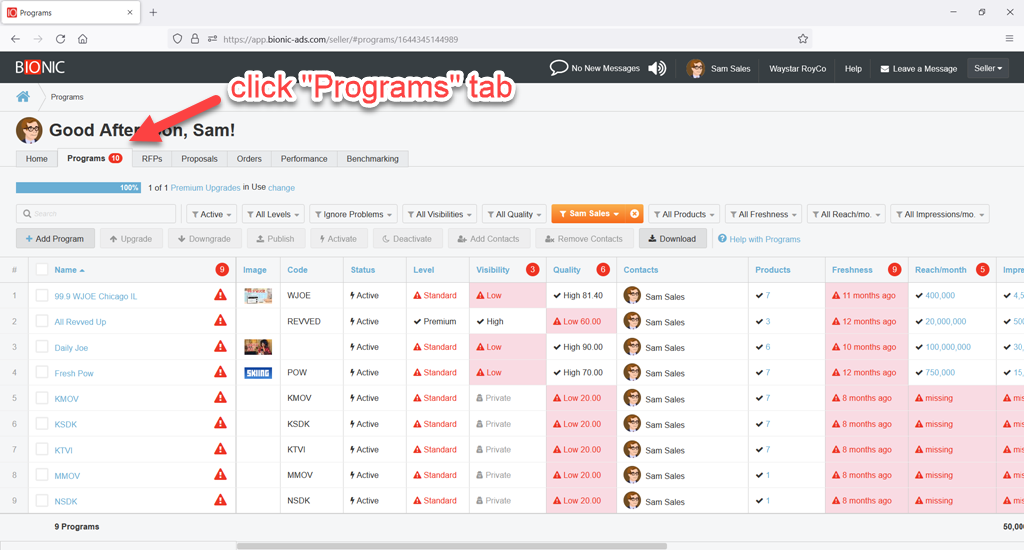
The Programs tab of Bionic for Ad Sales enables you to add, remove, or modify your advertising programs listed in the Bionic directory.
Reach Hundreds of Agencies and Advertisers
Your published program listings are available to hundreds of agencies and advertisers who use Bionic for Agencies for media planning and media buying.
Reach Thousands of Media Planners and Buyers
With the launch of the Advertise With Us website, your program listings are also available to thousands of media planners and media buyers.
How to Get Sales Leads
When someone submits a request for information through the Advertise With Us website, an email alert will be sent immediately to the primary contact for the given advertising program.
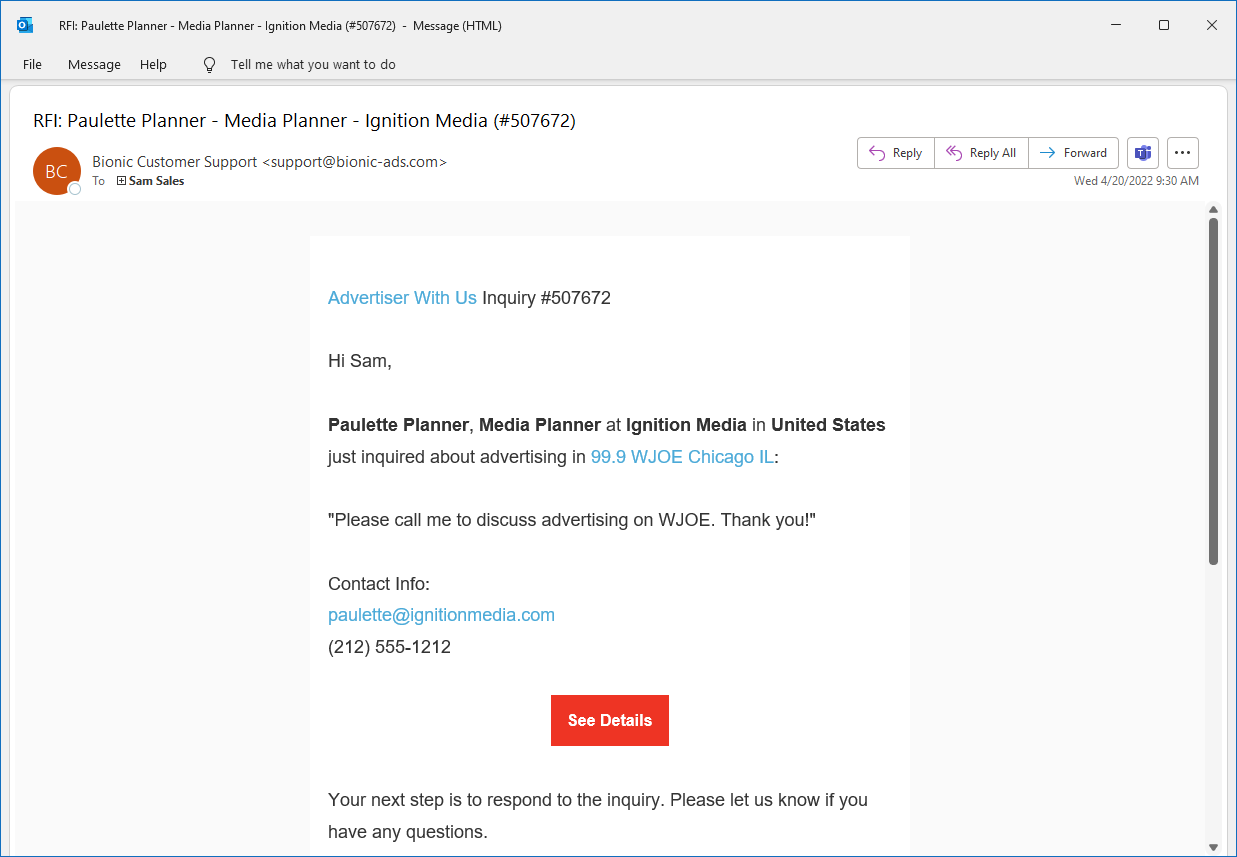
Leads Tab in Bionic
All your sales leads are also available under the Leads tab in Bionic for Ad Sales:

Here you can edit, re-assign, and update the status of your sales leads.
Make Sure Your Contacts are Up to Date!
It’s important to make sure the ad sales contacts are up to date on your advertising programs.
If your contacts are not up to date, your incoming sales leads will be assigned to wrong ad salesperson.
As sales leads are created, they are automatically assigned to the primary contact on the program. The primary contact will receive the email alert.
Review Contacts on Programs Tab

You can review and update your contacts on the Programs Tab of Bionic for Ad Sales.
How Can We Help You?
Have questions? Want advice?
We’re here to help you to get the most from Bionic: